

Adding clients
You can add a client in Practicos one at a time with the new-client form, or bring in your whole caseload at once from a spreadsheet.
Adding a single client
Section titled “Adding a single client”-
From the Clients page, choose Add client.
-
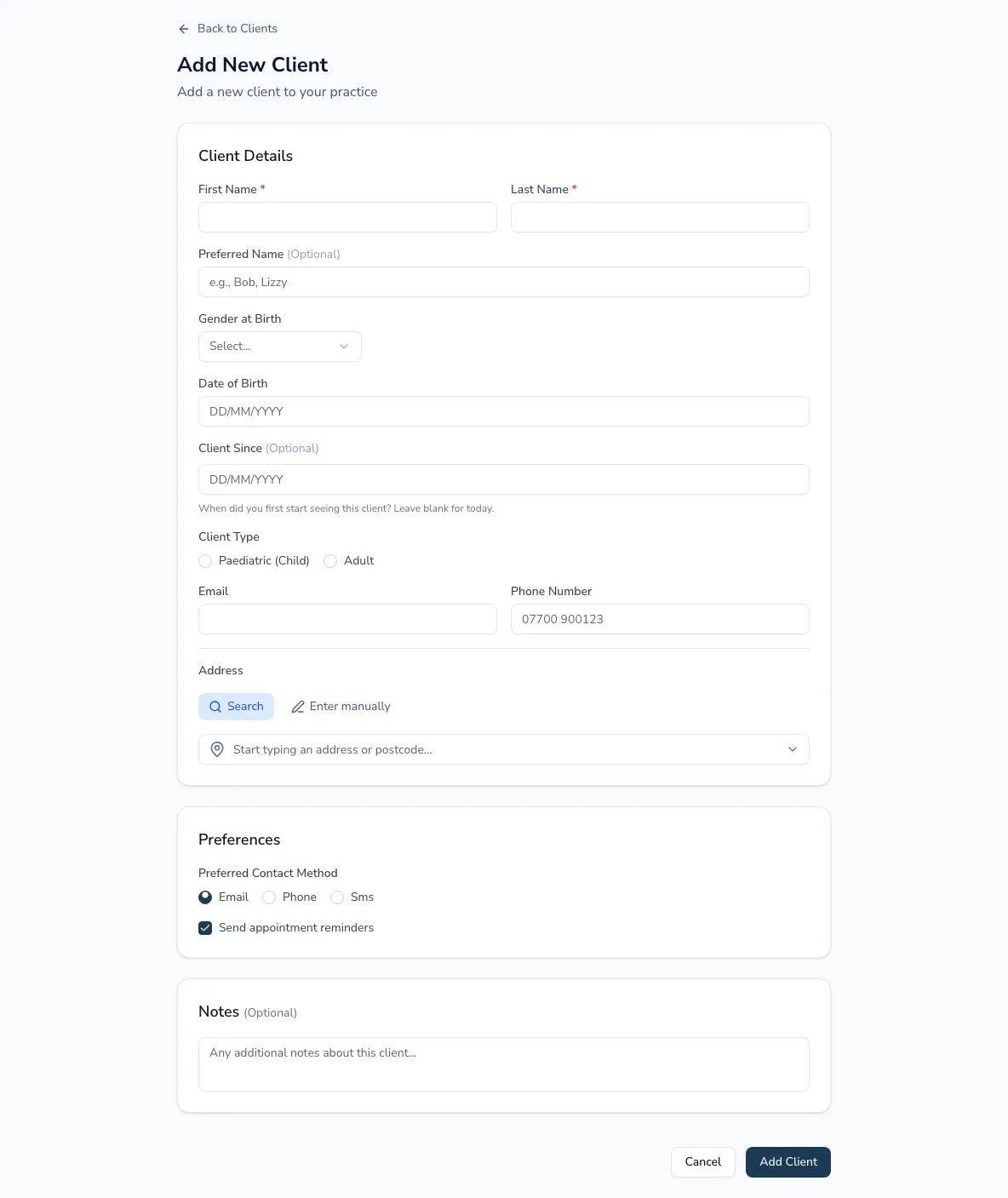
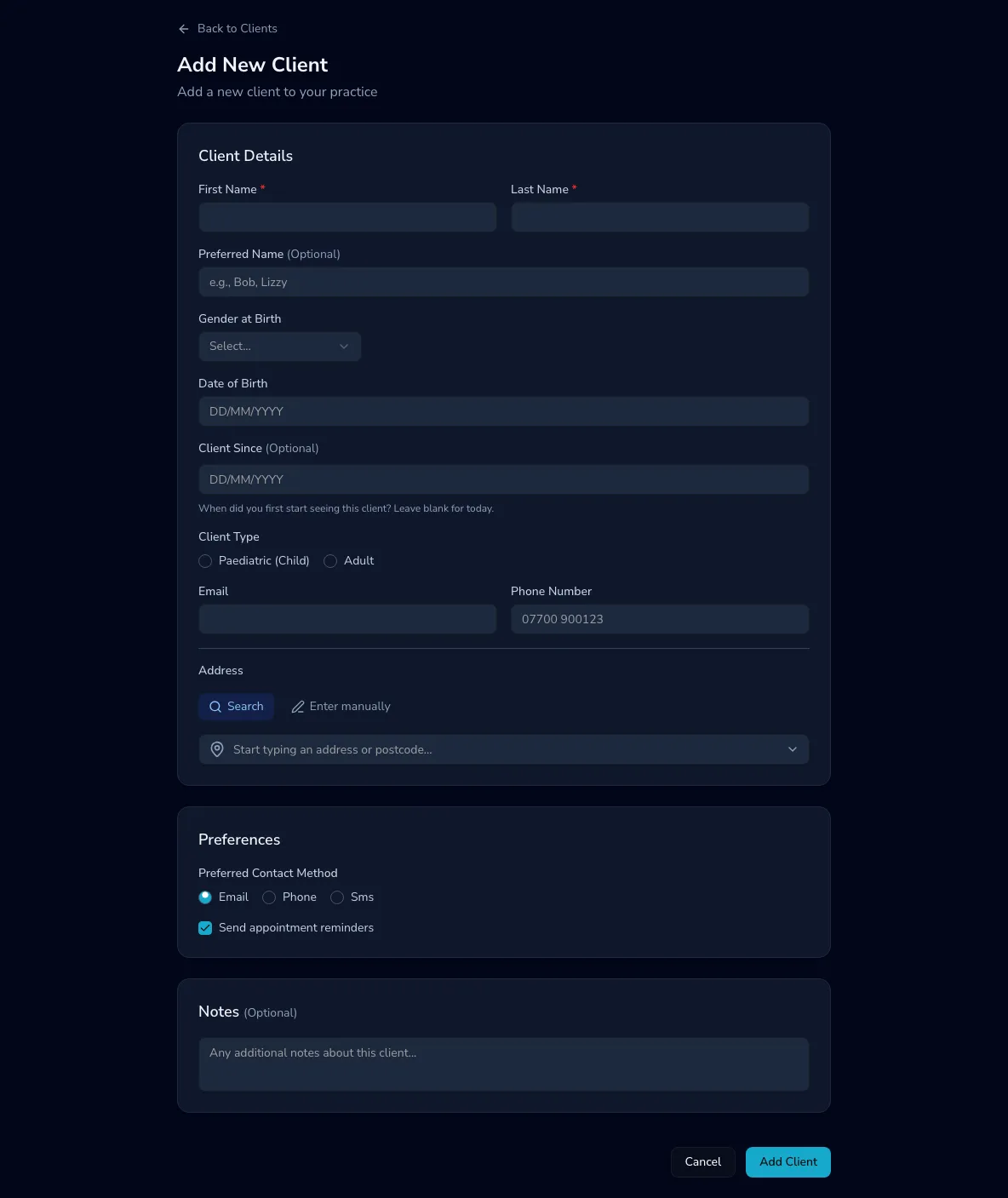
Fill in the details. First and last name are required; you can also add a preferred name, gender at birth, date of birth, “client since” date, email, phone, full address, and notes.
-
As you enter a date of birth, Practicos shows the client’s age and flags whether they’re a child.
-
Set preferences — preferred contact method (email, phone or SMS) and whether they receive appointment reminders.
-
Save. You’ll land on the new client’s record, ready to book their first session.
Guardians for a child client
Section titled “Guardians for a child client”When the date of birth is under 18, a Guardians section appears — a child needs at least one guardian, and you can add up to four. For each guardian you can record their name, relationship, email and phone, and flag whether they’re the primary contact, can collect the child, and should receive reminders.
Importing clients from a spreadsheet
Section titled “Importing clients from a spreadsheet”To bring in an existing caseload, use Import on the Clients page. It’s a four-step wizard:
-
Download the template — a spreadsheet with the right columns.
-
Upload your completed file.
-
Preview — Practicos shows which rows are valid and which need attention before anything is saved.
-
Results — you’ll see how many clients were imported and how many failed.
Imports carry across the core client fields plus guardians, status and address. Any rows that fail come back as a downloadable spreadsheet with a per-row error message, so you can fix just those and re-upload — you never have to redo the whole file.