

Service rates
Set your service rates once here, and Practicos fills them in automatically whenever you bill a session — no re-typing a fee on every invoice, and no guessing which rate applies to which session type.
Your price list
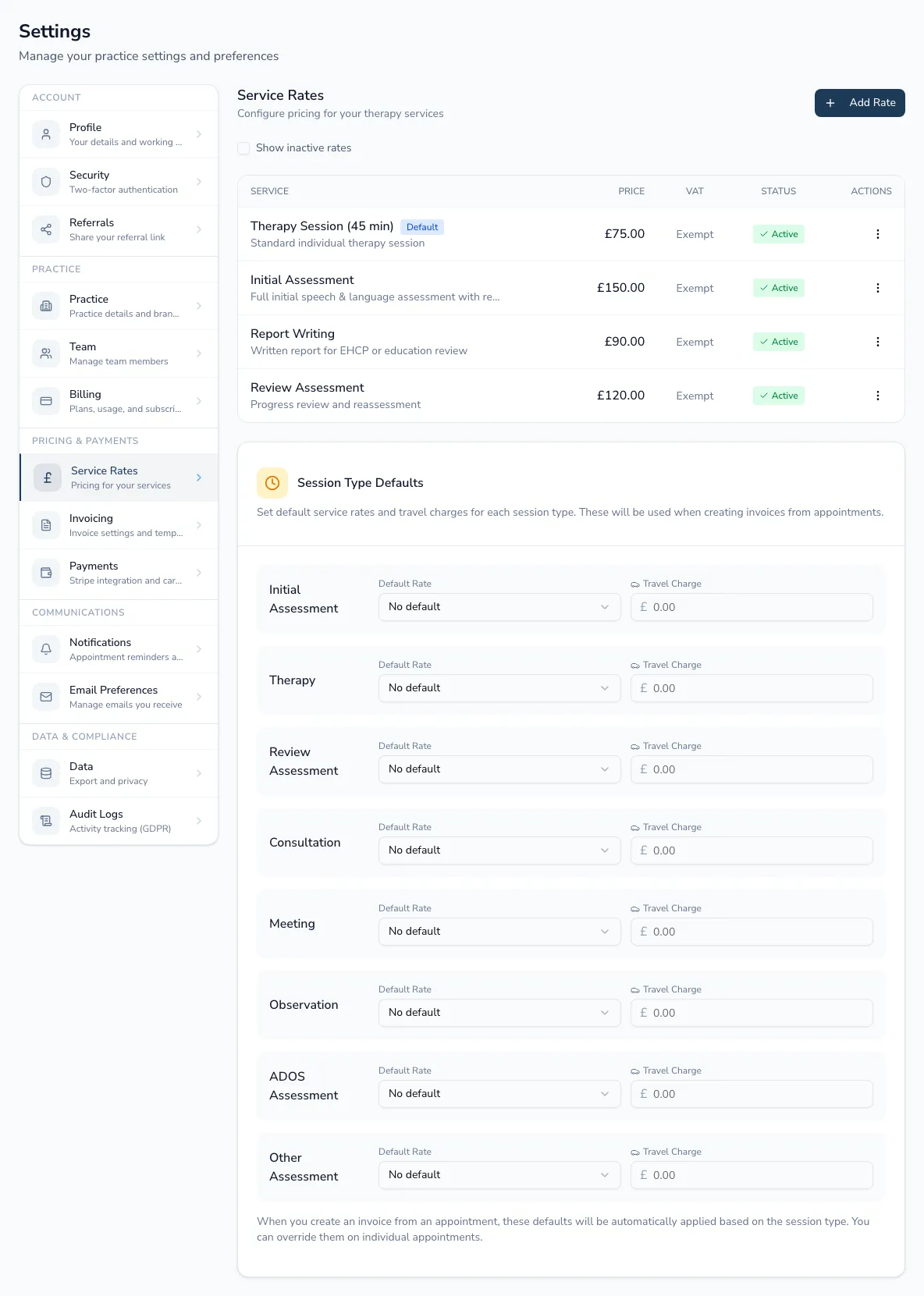
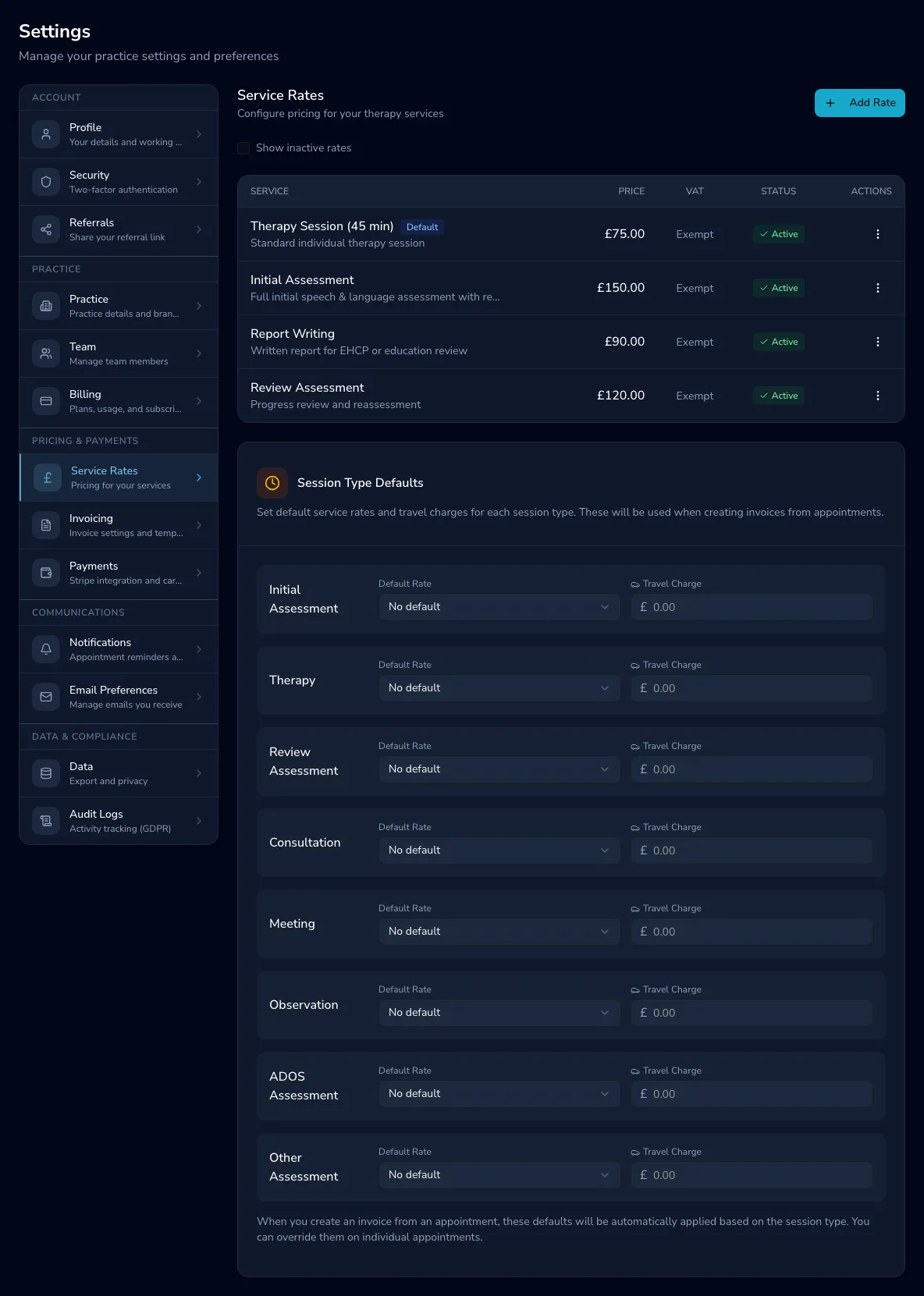
Section titled “Your price list”Each rate has a service name (e.g. “Therapy Session (50 min)”), an optional description, and a price in £. Add a rate with Add Rate, or open the menu on an existing one to edit, activate/deactivate or delete it.
- VAT — mark a rate VAT Exempt (most clinical SLT services are) or give it a specific VAT rate. Whether VAT actually appears on an invoice also depends on your practice’s VAT registration — see Invoicing settings.
- Default — flag one rate as the default so it’s the natural first choice when billing.
- Active/Inactive — deactivate a rate you no longer charge instead of deleting it, so past invoices still show what a client was actually charged. Switch on Show inactive rates to see (and reactivate) them again.
Session-type defaults
Section titled “Session-type defaults”Map each appointment type — Initial Assessment, Therapy, Review Assessment and the rest — to a default rate and, if you charge one, a default travel charge. When you bill an appointment of that type, both figures fill in automatically; you can still override either on an individual appointment or invoice.
-
Open Settings → Service rates and scroll to Session Type Defaults.
-
For each session type, choose its default rate from your price list.
-
Add a travel charge in £ if that session type usually involves one (e.g. home visits).
Who can change rates
Section titled “Who can change rates”Everyone on the team can see the price list, so a practitioner can always confirm what a session costs when talking to a client. Adding, editing, deactivating or deleting a rate is limited to practice owners and managers — the same access as the rest of your money settings.