

Finding and managing clients
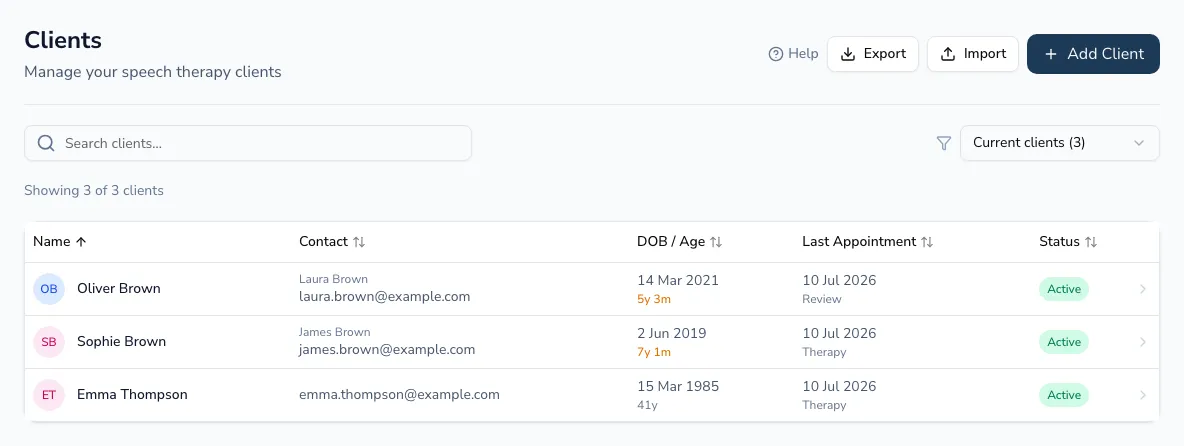
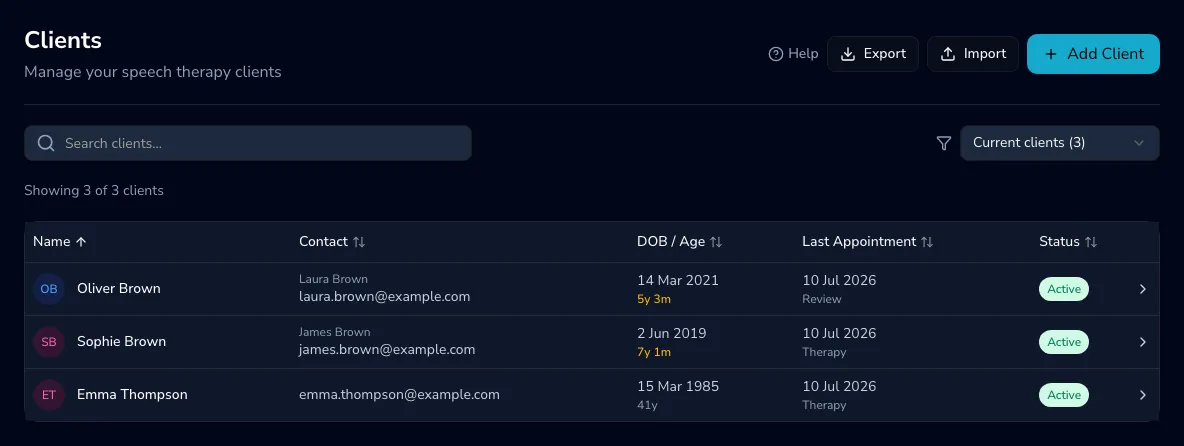
Your Clients page is your whole practice in one place — every client in a single searchable, sortable list, so you can find anyone in seconds. On smaller screens it switches from a table to cards automatically.
Searching and filtering
Section titled “Searching and filtering”- Search by name or contact details — results filter as you type.
- Status — filter by a client’s stage, with a live count next to each option. Current is the default and combines active, waitlist and on-hold clients so you see everyone you’re working with.
- Therapist — in team practices, narrow the list to a single practitioner’s caseload. (This filter only appears when your practice has more than one practitioner.)
Use Clear filters to reset everything back to the default view.
Children under 18 show their age highlighted and display their primary guardian’s contact details instead of their own.
Client statuses
Section titled “Client statuses”| Status | Meaning |
|---|---|
| Active | Currently receiving therapy. |
| Waitlist | Waiting to start. |
| On hold | Paused, expected to resume. |
| Discharged | Therapy complete. |
| Inactive | No longer active, not discharged. |
Sorting
Section titled “Sorting”Click any column heading to sort — Name, Contact, Date of birth / age, Last appointment or Status.
Exporting your clients
Section titled “Exporting your clients”Choose Export to download your full client list as a dated CSV file, ready for a spreadsheet or your own records. (A complete GDPR export of all your practice data — not just clients — is available separately in Settings → Data.)
Adding clients
Section titled “Adding clients”Use Add client for a single client, or Import to bring in many at once from a spreadsheet — see Adding clients.