

Signing and locking notes
Saving vs signing
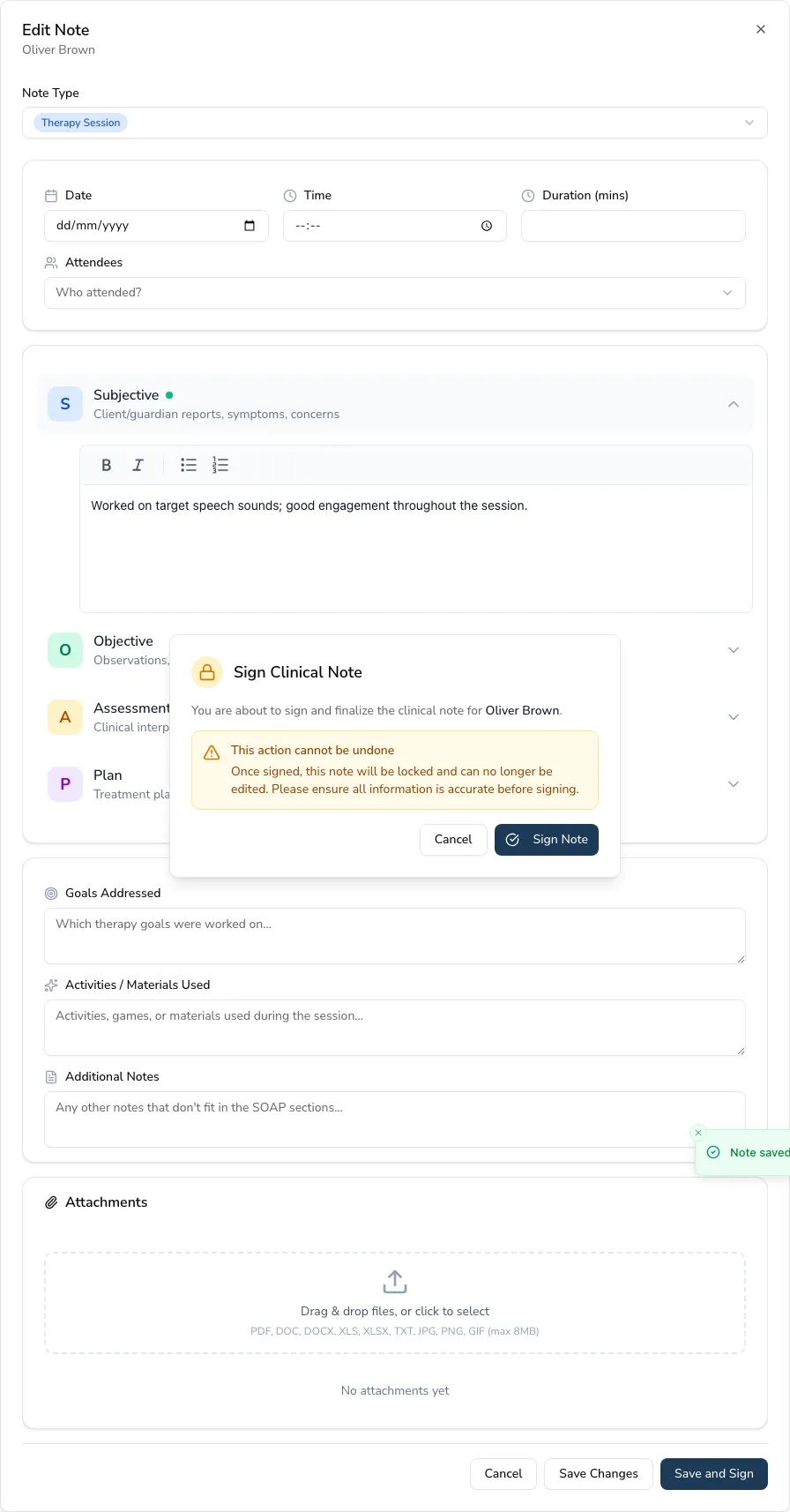
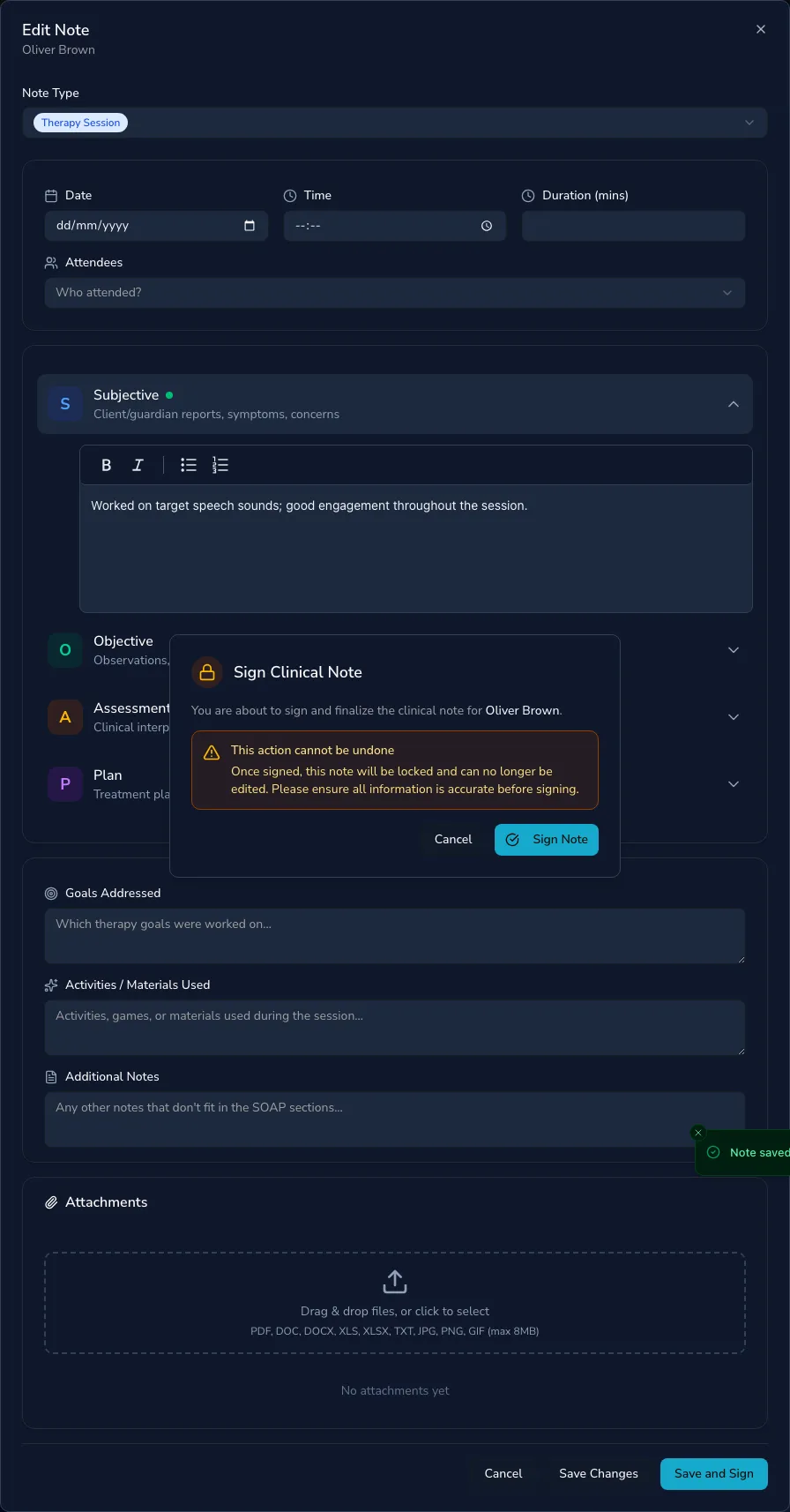
Section titled “Saving vs signing”Signing a note locks it as a final, permanent clinical record; until then it stays an editable draft — so you have two ways to keep a note:
- Save (Create note / Save changes) — keeps it as an editable draft you can come back to.
- Save and sign — records the note as final.
Signing requires content in at least one section, and once signed the note is permanently locked: it becomes read-only, can’t be edited, and shows a Signed badge.
Attachments
Section titled “Attachments”You can add file attachments to a note — Practicos saves the note first if needed, so nothing is lost. Attachments stay with the note as part of the clinical record.
Unsaved changes
Section titled “Unsaved changes”If you try to close a note with unsaved changes, Practicos asks you to confirm before discarding, so you don’t lose work by accident.
Second review
Section titled “Second review”In practices that use it, signed notes can be sent to a senior reviewer. That review queue is covered under team oversight reporting (Reports → Notes for review).
Correcting a mistake in a signed note
Section titled “Correcting a mistake in a signed note”Signing locks a note for good reason — but mistakes still happen, like a note saved against the wrong child. If a note for Oliver Brown was accidentally saved to the wrong client’s record at Oakwood SLT, practice owner Rachael Adams (or a manager) can delete it to put things right.
Open the signed note and choose Delete. Practicos asks you to type the client’s full name and give a reason before the Delete button becomes active — this extra step stops a signed note being removed by accident. Once deleted:
- The note disappears from the client’s record and everywhere else it would normally show — notes oversight, outstanding notes, and reports.
- If the note was linked to an appointment, that appointment goes back to needing a note.
- The deletion is recorded in your practice’s audit trail, along with the reason given.