

The Getting started page
Once you’ve signed up, Getting started is your home for setting the practice up. It gathers every setup step in one place, always shows you what to do next, and lets you hide anything that doesn’t apply to you. You’ll find it in the main menu, and there’s a compact version on your dashboard and Today view.
You don’t have to work through it in order, and you can leave and come back whenever suits you — nothing is lost.
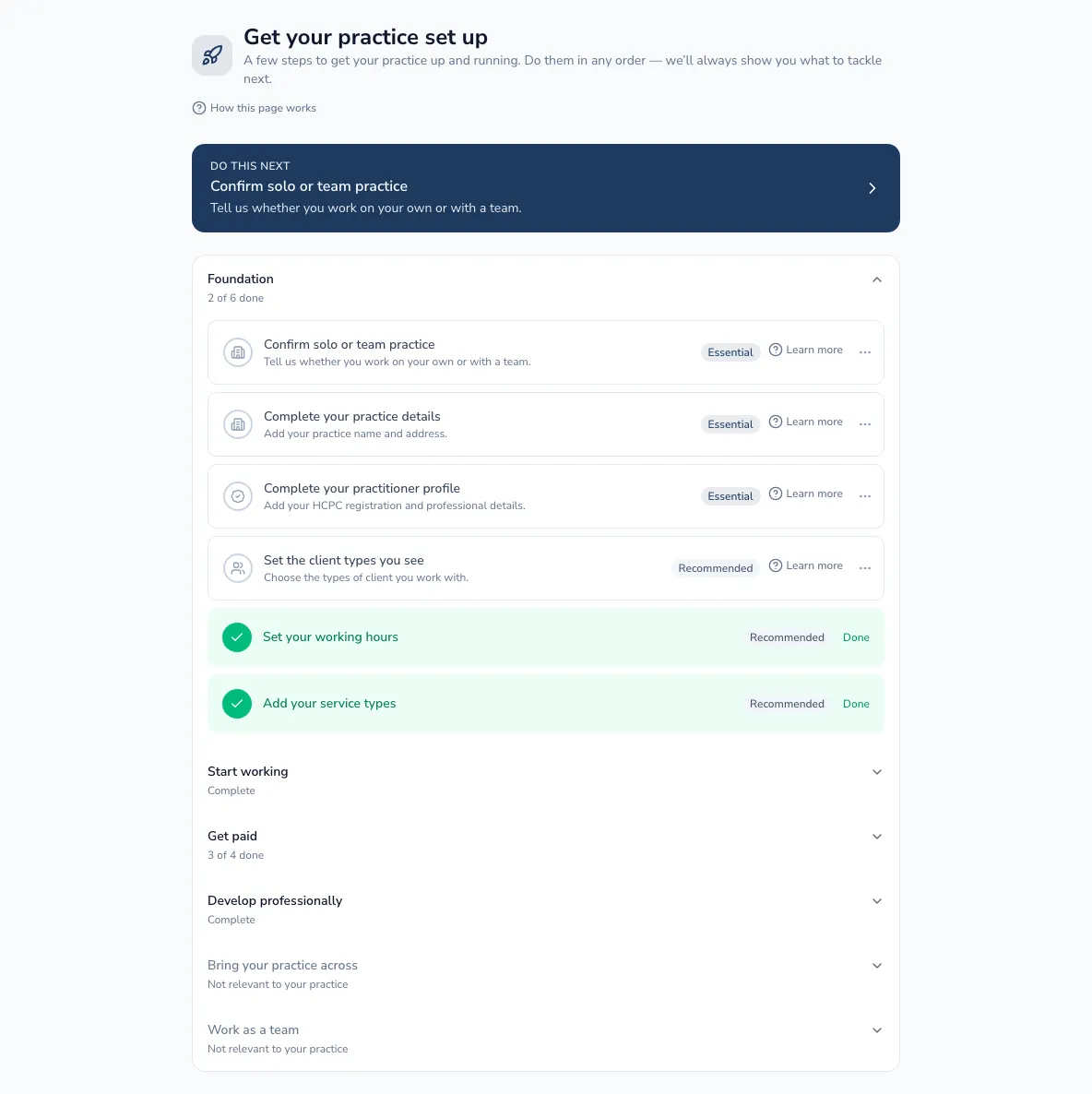
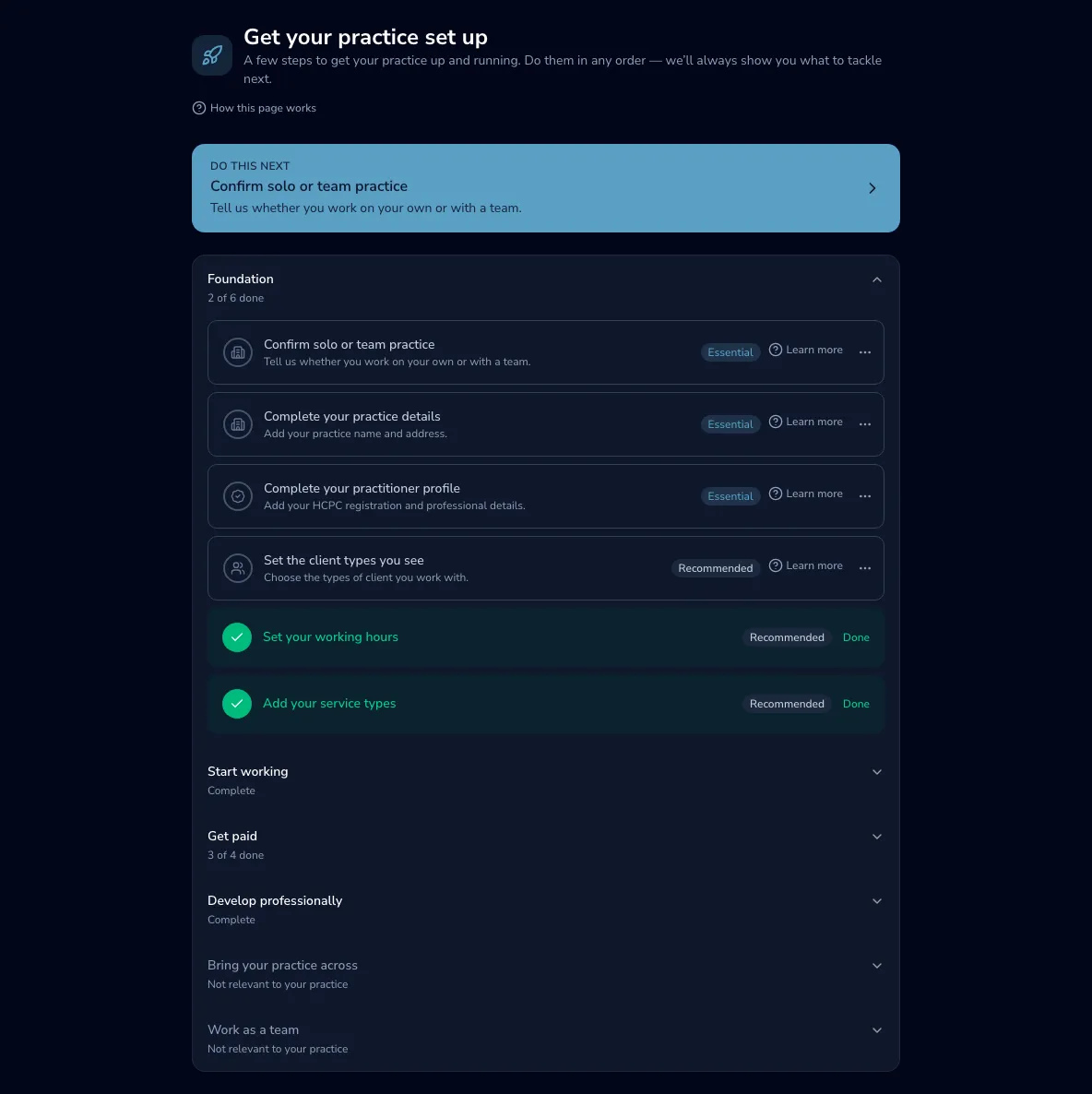
Your steps, grouped
Section titled “Your steps, grouped”Steps are gathered into six groups, so you can focus on one part of setting up at a time:
- Foundation — the essentials every practice needs in place, like your practice details and professional registration.
- Start working — add clients, book sessions and write your first notes.
- Bring your practice across — move the clients you already have into Practicos (see Bringing your practice across).
- Work as a team — invite colleagues and get them set up. This only shows on a team plan.
- Get paid — set up invoicing and card payments, if you charge for your work.
- Develop professionally — record clinical supervision and keep developing.
Each group shows how far along you are — for example “2 of 4 done”, “Complete”, or “Not started” — so you can see at a glance what’s left.
Essential, recommended and optional
Section titled “Essential, recommended and optional”Every step carries a label so you know how much it matters:
- Essential — needed before your practice is properly up and running.
- Recommended — not required, but most practices will want it.
- Optional — useful for some practices, and safe to skip if it’s not for you.
For example, adding your first client is essential, setting your working hours is recommended, and connecting card payments is optional.
Do this next
Section titled “Do this next”At the top of the page, Do this next points you at the single most useful step to take right now, so you’re never left wondering where to start. As you complete steps, it moves on to the next one. When the essentials are all in place, you’ll see a note confirming your practice is ready to use — everything after that is there to help you get more from Practicos, not something you must finish.
Setting steps aside
Section titled “Setting steps aside”Not every step applies to every practice, and some can wait. On any step, open the ⋯ menu to:
- Do this later — tuck a step away for now. It moves to a Later state and stops nudging you, but it’s easy to bring back.
- Not relevant to my practice — hide a step that doesn’t apply to you (for example, card payments if you don’t charge clients directly). Essential steps can’t be marked not relevant.
Anything you’ve set aside collects in a Not relevant section at the bottom, where you can Restore it at any time. If your circumstances change — say you move onto a team plan — the steps that now apply reappear on their own.
On your dashboard and Today
Section titled “On your dashboard and Today”You don’t have to visit this page to keep setting up. A compact Get your practice set up card appears on your dashboard and on your Today view, showing your next step and a shortcut straight to it. When the essentials are all done, the card steps back so it’s not in your way. Choose See all steps on the card any time to come back to the full Getting started page.