

Your profile and working hours
Your profile keeps how you appear to clients, your professional registration and its renewal reminders, and your working hours in one personal place — so your HCPC, RCSLT and ASLTIP details never quietly lapse.
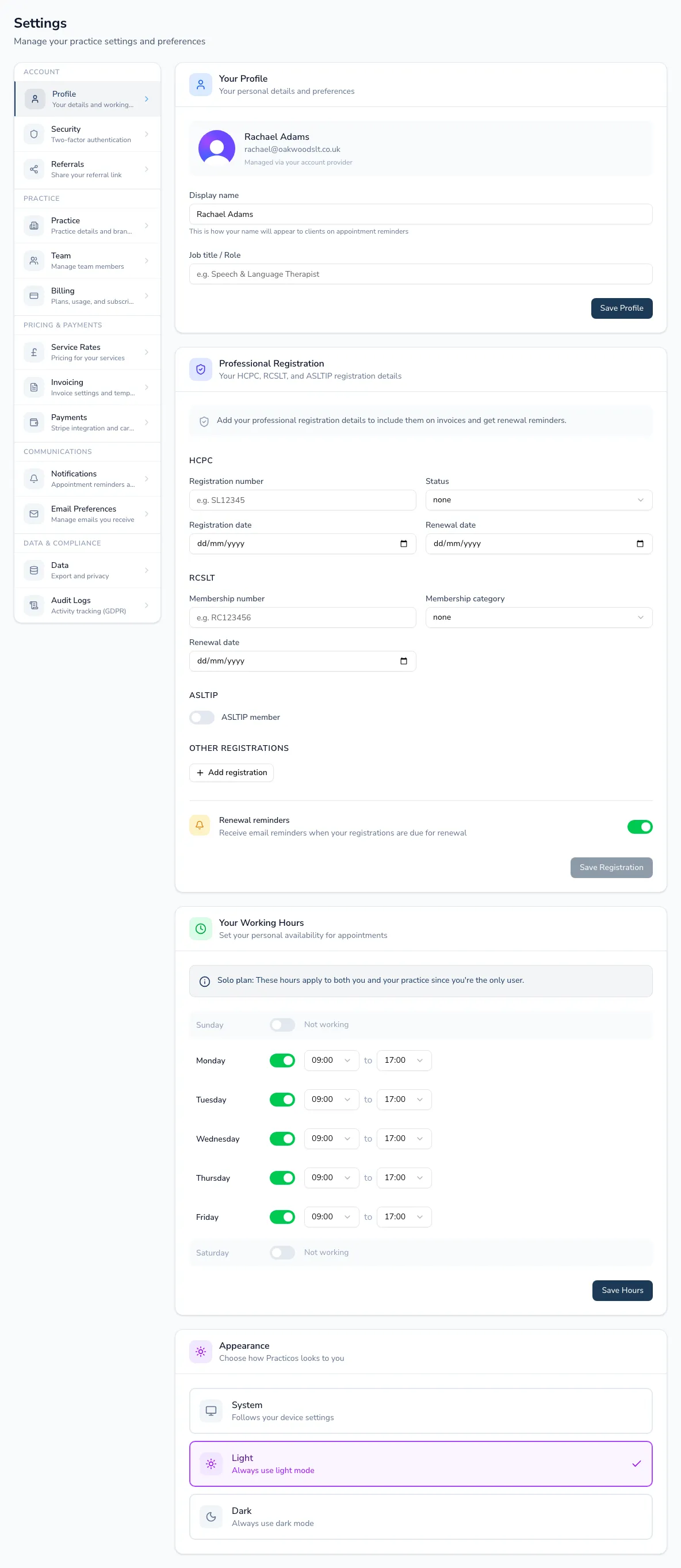
Your details
Section titled “Your details”- Display name — shown to clients on appointment reminders and emails.
- Job title / role.
Your avatar and email address are managed by your account provider (sign-in), so they’re shown here read-only.
Professional registration
Section titled “Professional registration”Keep your registration details in one place, with a clear read on what’s coming up for renewal:
- HCPC — registration number (checked against the expected format —
two letters then 5–6 digits, e.g.
SL12345), status (Active, Lapsed or Non-practising), registration date and renewal date. - RCSLT — membership number, category (Newly Qualified Practitioner, Certified Member, Fellow, Associate or Other) and renewal date.
- ASLTIP — a membership switch, with its own number and renewal date once switched on.
Your HCPC, RCSLT and ASLTIP renewal dates each show a status badge — Current, Renewing soon, Renewal due or Lapsed — so you can see at a glance what needs attention. A separate renewal reminders switch controls whether Practicos emails you as any of these dates approach; turn it off if you’d rather track renewals yourself.
- Other registrations — add any further body (a BSL interpreting qualification, for example) with its own name, number and renewal date, and remove any you no longer need.
Working hours
Section titled “Working hours”Set your usual working days and start/end times. These shape your calendar and what counts as outside working hours when booking.
Appearance
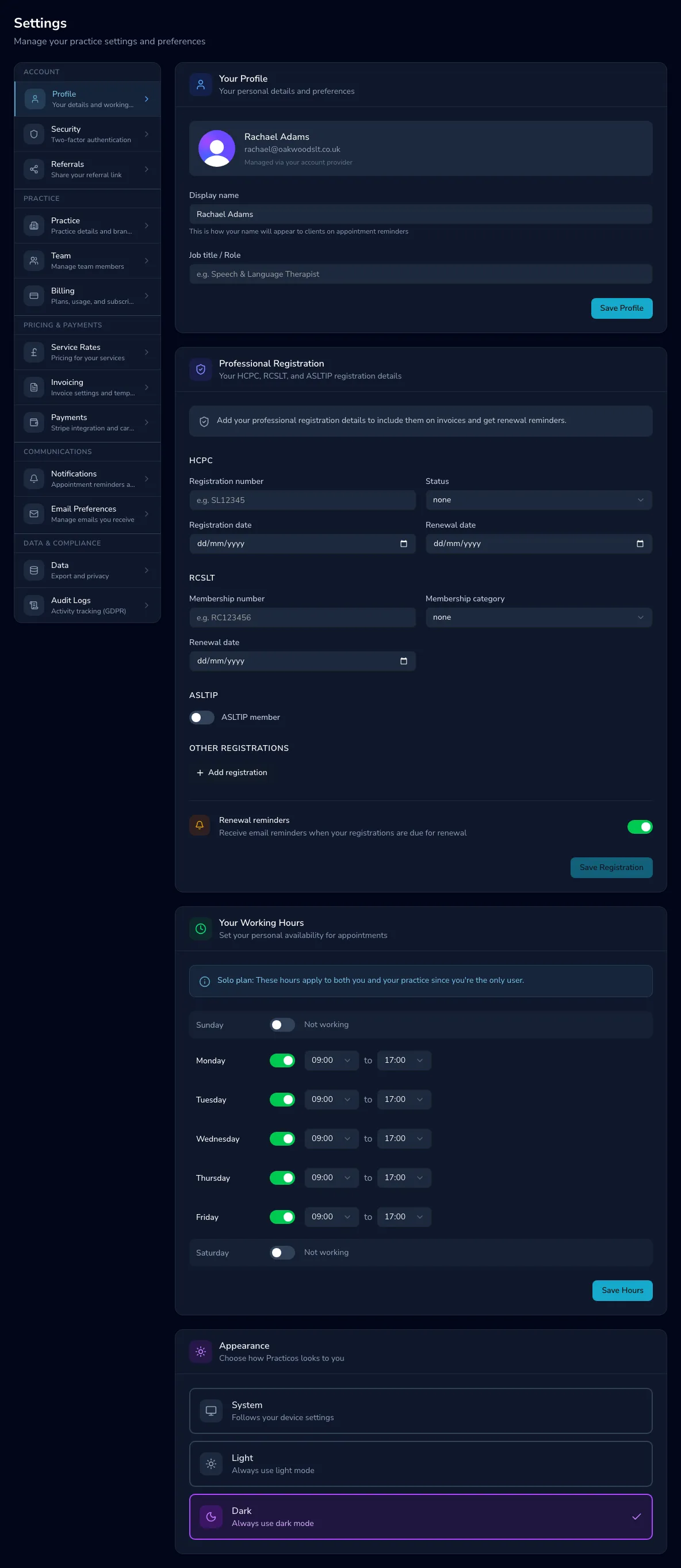
Section titled “Appearance”Choose your theme — System, Light or Dark.