

Running a workshop
Running a workshop takes a scheduled session all the way to done — you fill the seats, take the register on the day, and email out certificates afterwards — without juggling a spreadsheet alongside it.
The lifecycle
Section titled “The lifecycle”-
Scheduled — the instance is booked in, ready to fill. You can still edit its date, time, location, capacity or price from here.
-
Confirm it once it’s definitely going ahead — the last point at which you can still edit it.
-
Complete it after it’s run, to lock it in and unlock certificates.
You can cancel an instance at any point up to completion — Practicos warns you if attendees are already registered, so you don’t forget to let them know.
Filling seats
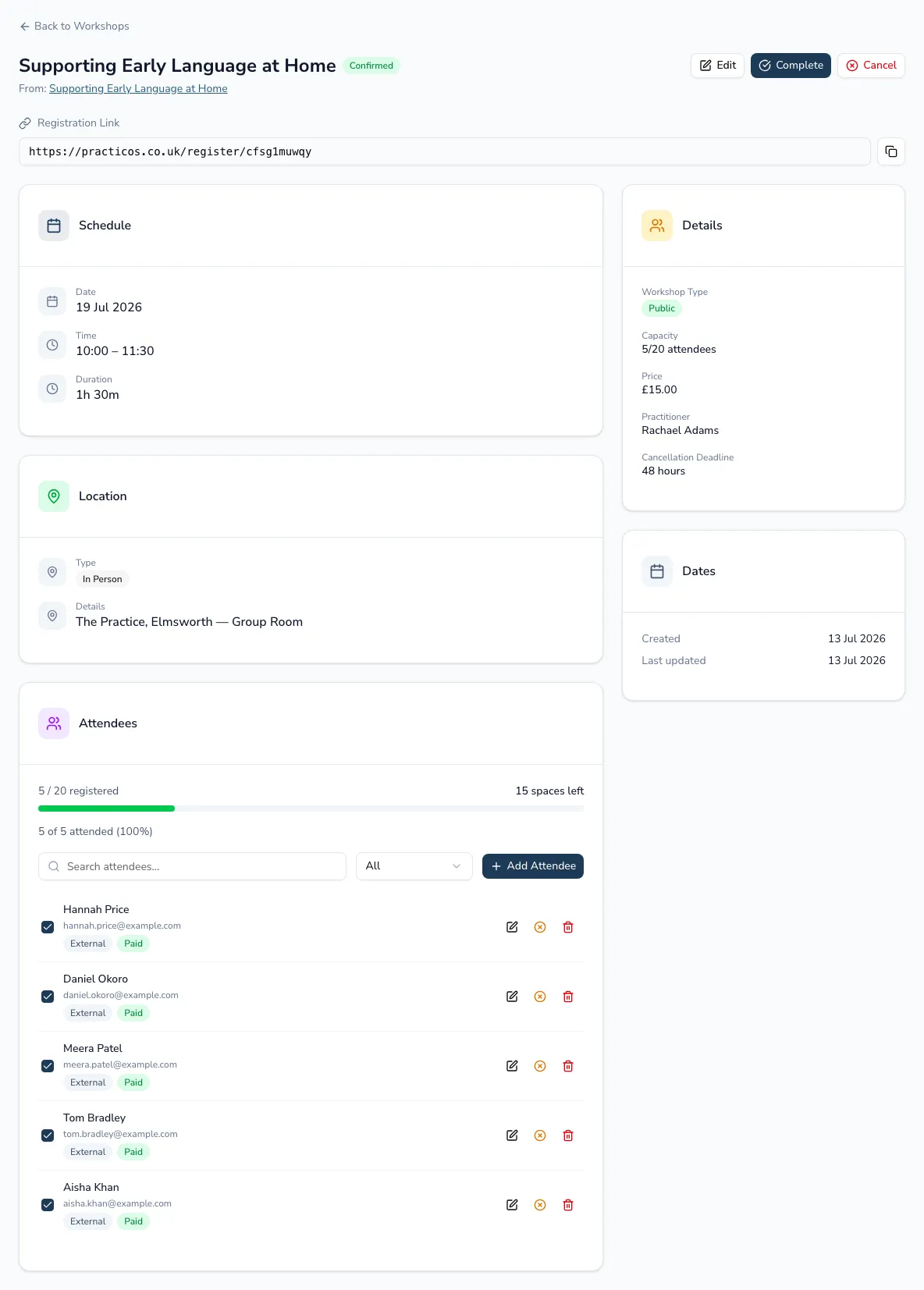
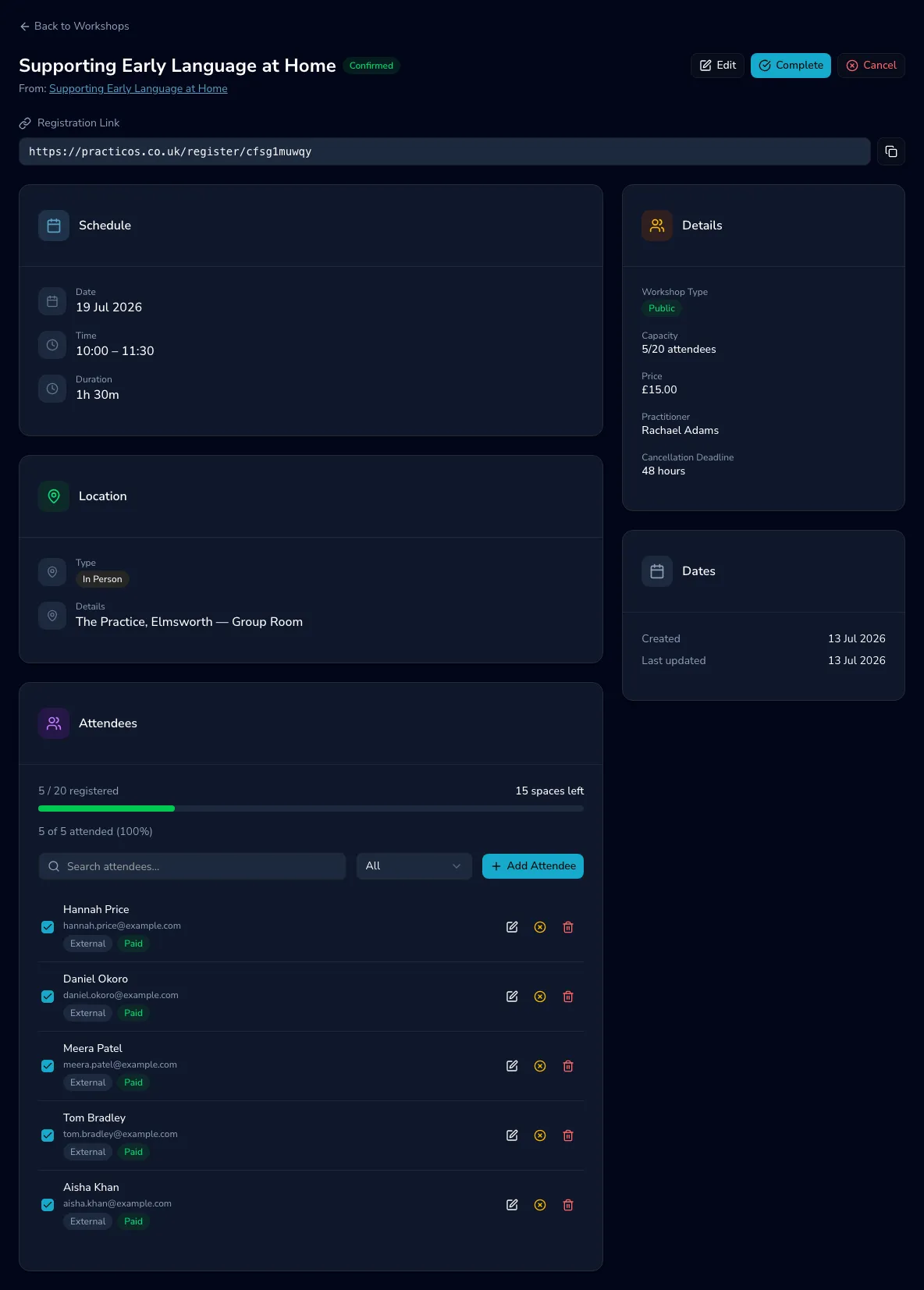
Section titled “Filling seats”Share the registration link so people can sign themselves up with no Practicos account needed — copy it with one click to put in an email, a poster or a school newsletter. You’ll always see how many of your capacity are filled, and you can also add an attendee yourself (by name, email and phone), edit their details, or cancel their place.
Taking the register
Section titled “Taking the register”Once a workshop is confirmed, mark each attendee as attended — one at a time, or Mark All Attended if everyone showed up — and search or filter the list (All / Attended / Not Attended / Cancelled) to find someone quickly. Practicos keeps a running attendance count and percentage as you go, so you know at a glance how the session is filling up.
Certificates
Section titled “Certificates”Once a workshop is completed, email a PDF attendance certificate to everyone who attended in one step — Practicos tells you how many sent successfully and flags any that failed. You can also download an individual attendee’s certificate on demand.